Lab Report - Week 2
In this weeks report we’ll see how to:
1. Install VScode
2. Remotely Connect
3. Try Some Commands
4. Move Files with scp
5. Setting an SSH Key
6. Optimizing Remote Running
Insatlling VScode:
For the first step, you will need to install VScode, which is the editor that you will use.
Just go to https://code.visualstudio.com and download it.
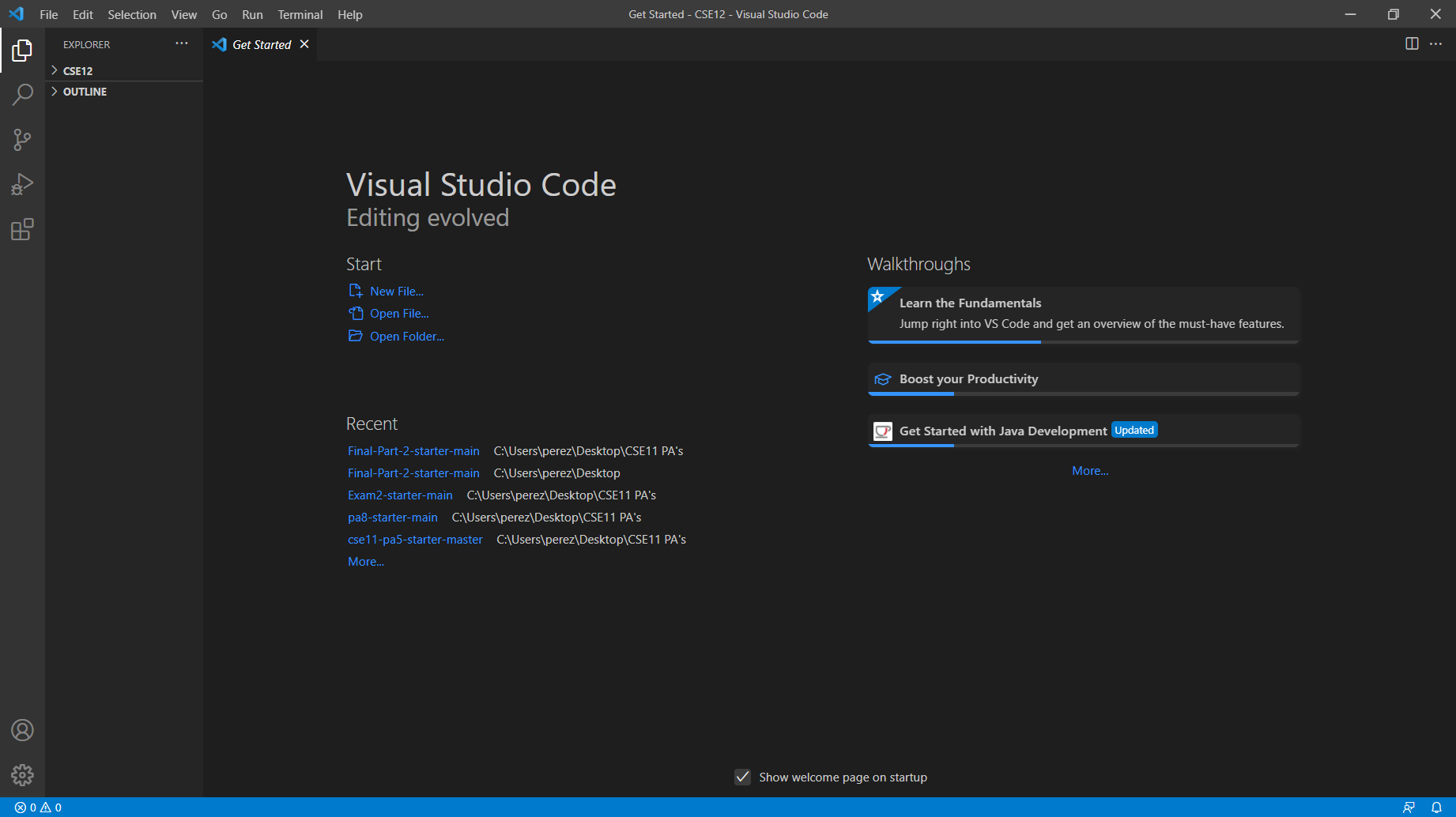
It should look something like this once you open it:
Remotely Connect:
In this step we are going to connect to a server to do work there. This is pretty useful because you can do work from any part of the world that has internet connection.
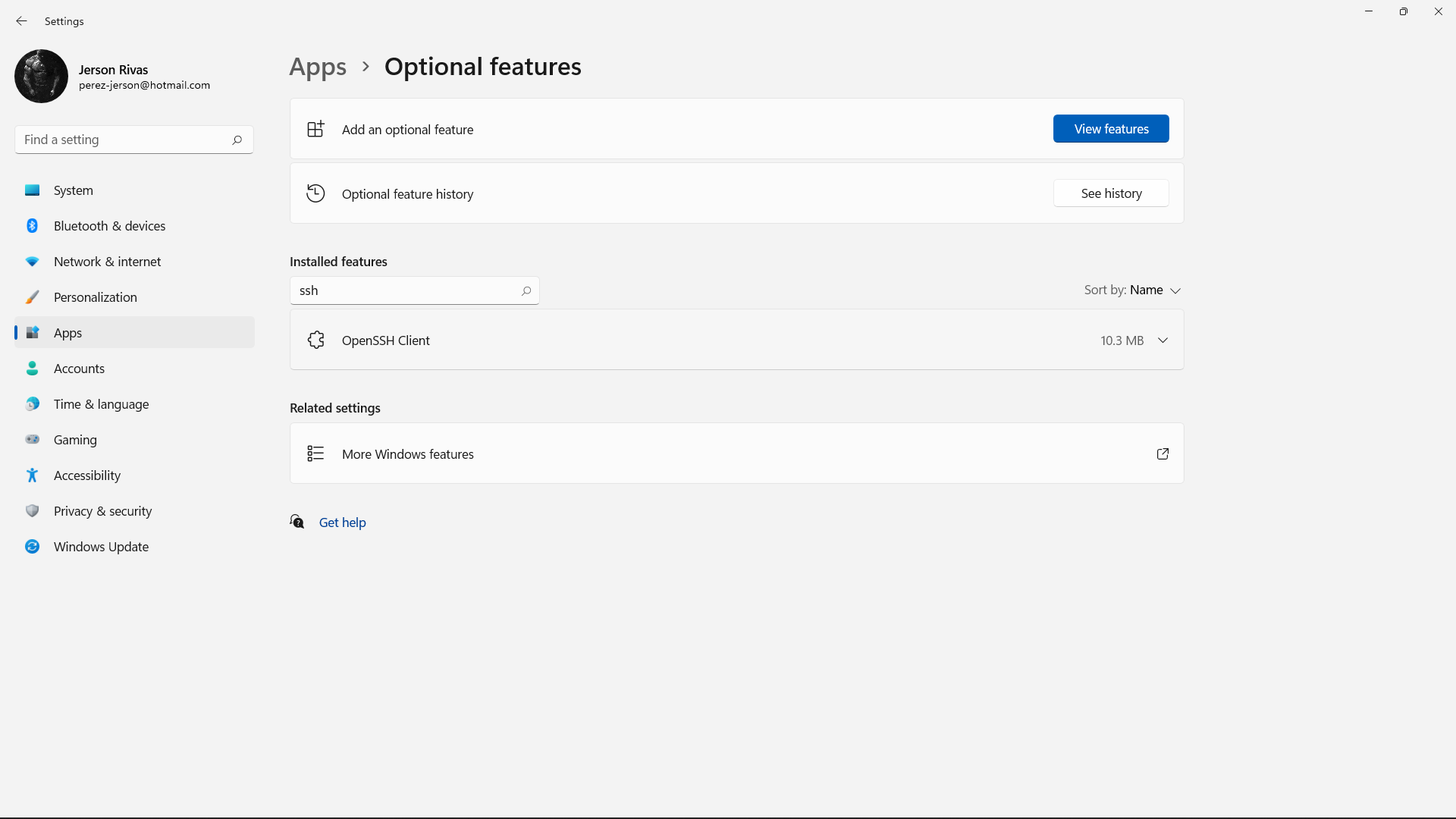
There is a couple steps in order to do this. The first one is to install OpenSSh. In my case it was already installed. To check this go to Settings → Apps → Optional Features and search for SSH. In case it is not installed, just click on add features and search it there.
After this, let’s go to VScode and open a new terminal. In the terminal I typed the following command:
$ ssh cs15lwi22asi@ieng6.ucsd.edu
After that, this message appears:
⤇ ssh cs15lwi22asi@ieng6.ucsd.edu
The authenticity of host 'ieng6.ucsd.edu (128.54.70.227)' can't be established.
RSA key fingerprint is SHA256:ksruYwhnYH+sySHnHAtLUHngrPEyZTDl/1x99wUQcec.
Are you sure you want to continue connecting (yes/no/[fingerprint])?
Just typed yes, and entered the password.
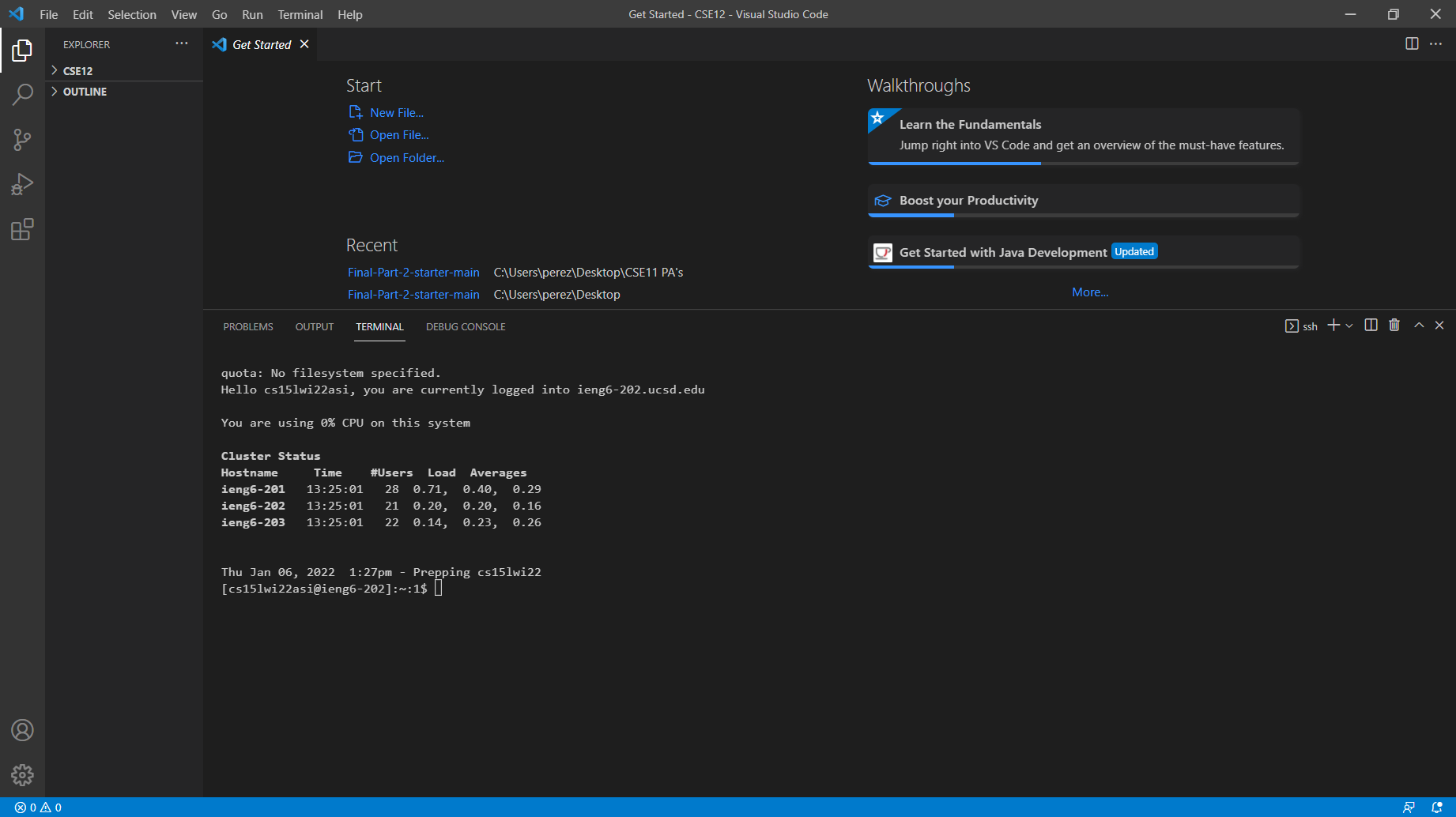
When this shows up that means a succesful connection to the server has been stablished.
Try Some Commands:
In this step I tried some commands that areb useful for different practices.
These are the commands I used:
- cd ~
- cd
- ls -a
- ls -lat
- cp /home/linux/ieng6/cs15lwi22/public/hello.txt ~/
- cat /home/linux/ieng6/cs15lwi22/public/hello.txt
- exit
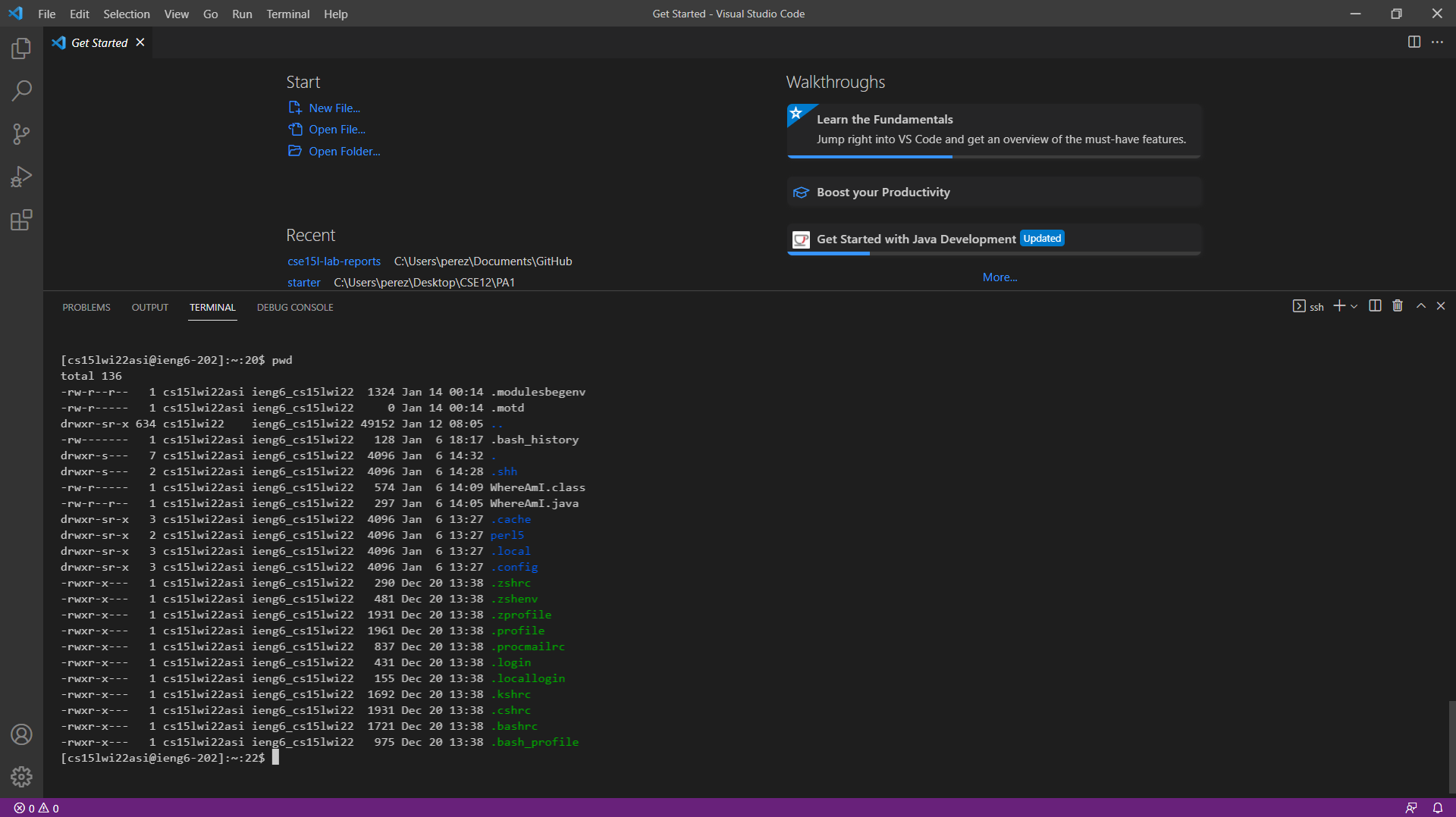
This is the output I got.
Moving Files with scp:
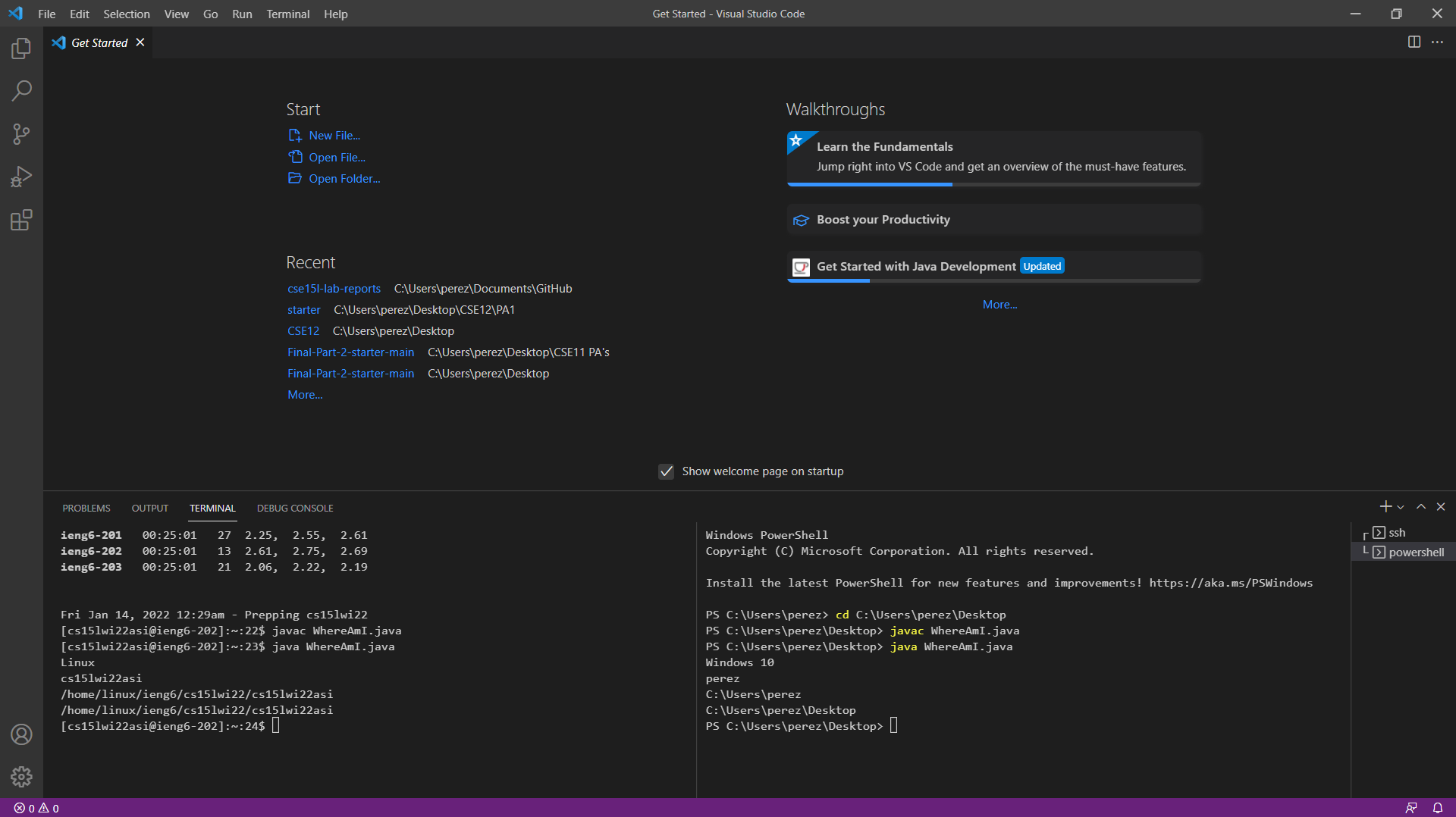
In this part I had to copy a file from my local computer to the remote server. This was done using scp.
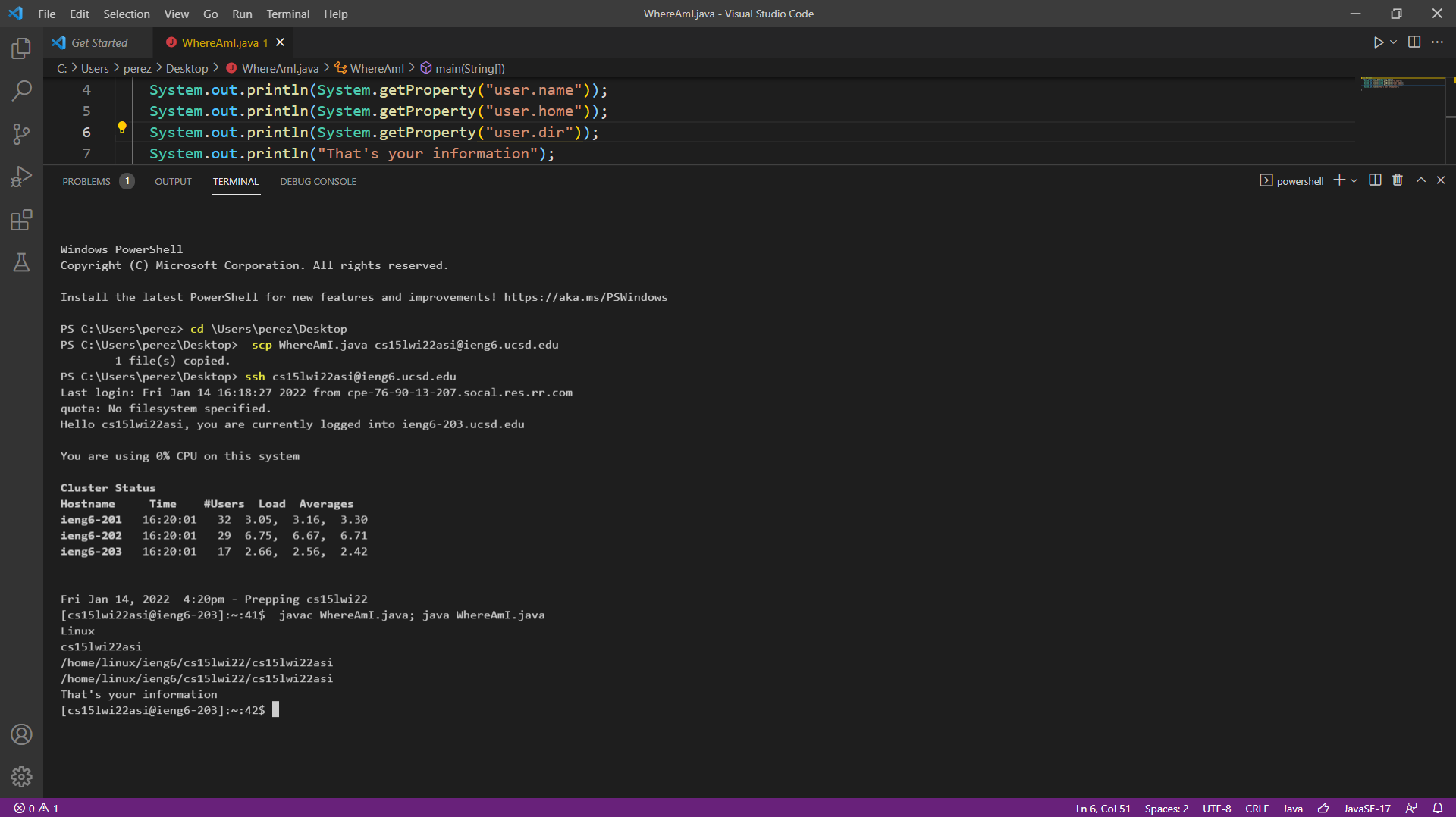
To test this, I created the WhereAmI.java file wchich basically was a program that its output was the operating system, the name of the user among other things.
First, I ran this in my computer. After that, I copied the file to the remote computer using this command:
scp WhereAmI.java cs15lwi22asi@ieng6.ucsd.edu:~/ Then I executed the program in the server and got this:
Setting an SSH Key:
In this step I implemented an SSH key to be able to log in without a password.
I had a few problems in doing this, but the optimal way to do it is opening powershell as administrator.
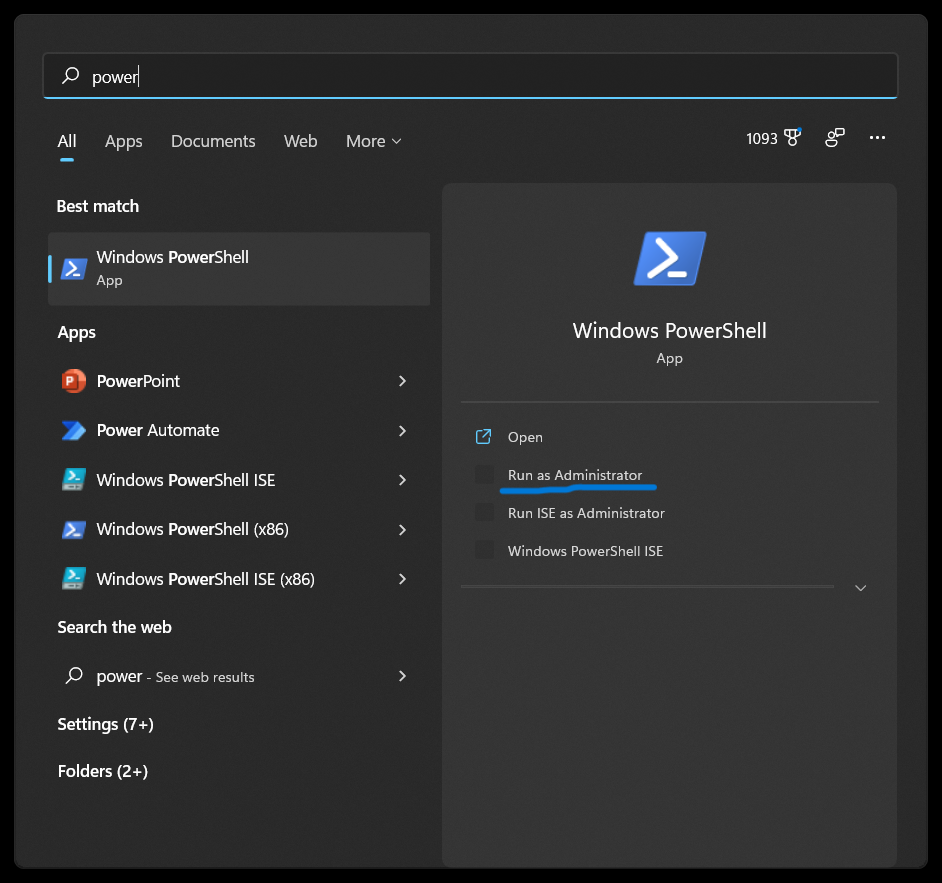
Once in there, I generated my key by typing the following command: ssh-keygen -t ed25519
I just hit enter after this, and then copied and pasted the next commands:
- Get-Service ssh-agent | Set-Service -StartupType Manual
- Start-Service ssh-agent
- Get-Service ssh-agent
- ssh-add \Users\perez\.ssh\id_ed25519
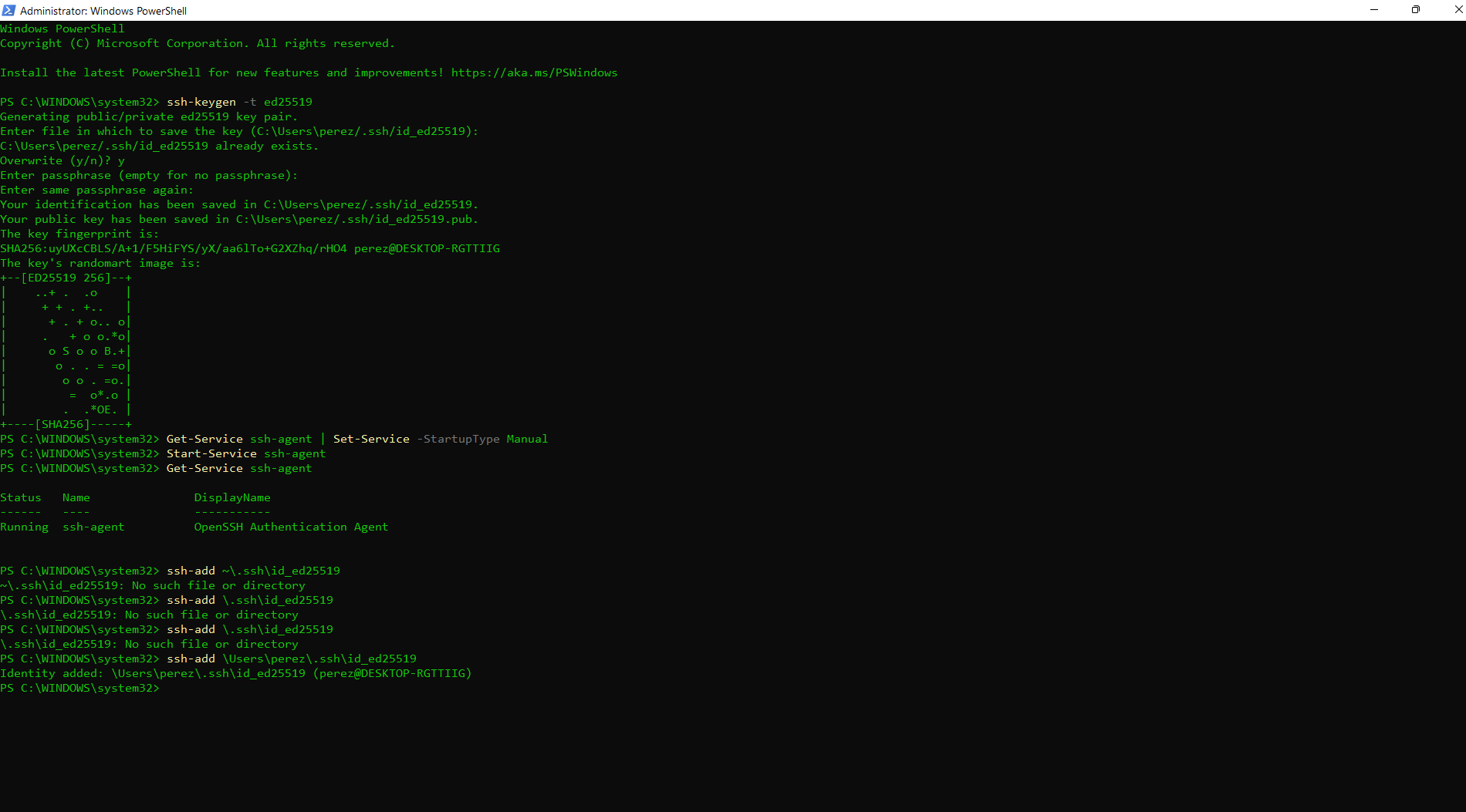
Then, I moved on to copy the public key in the server. For this I opened VScode terminal and input these command:
ssh cs15lwi22asi@ieng6.ucsd.edu
Password:
$ mkdir .ssh
$ exit
$ scp C:\Users\perez\.ssh\id_ed25519.pub cs15lasi22@ieng6.ucsd.edu:~\.ssh\authorized_keys
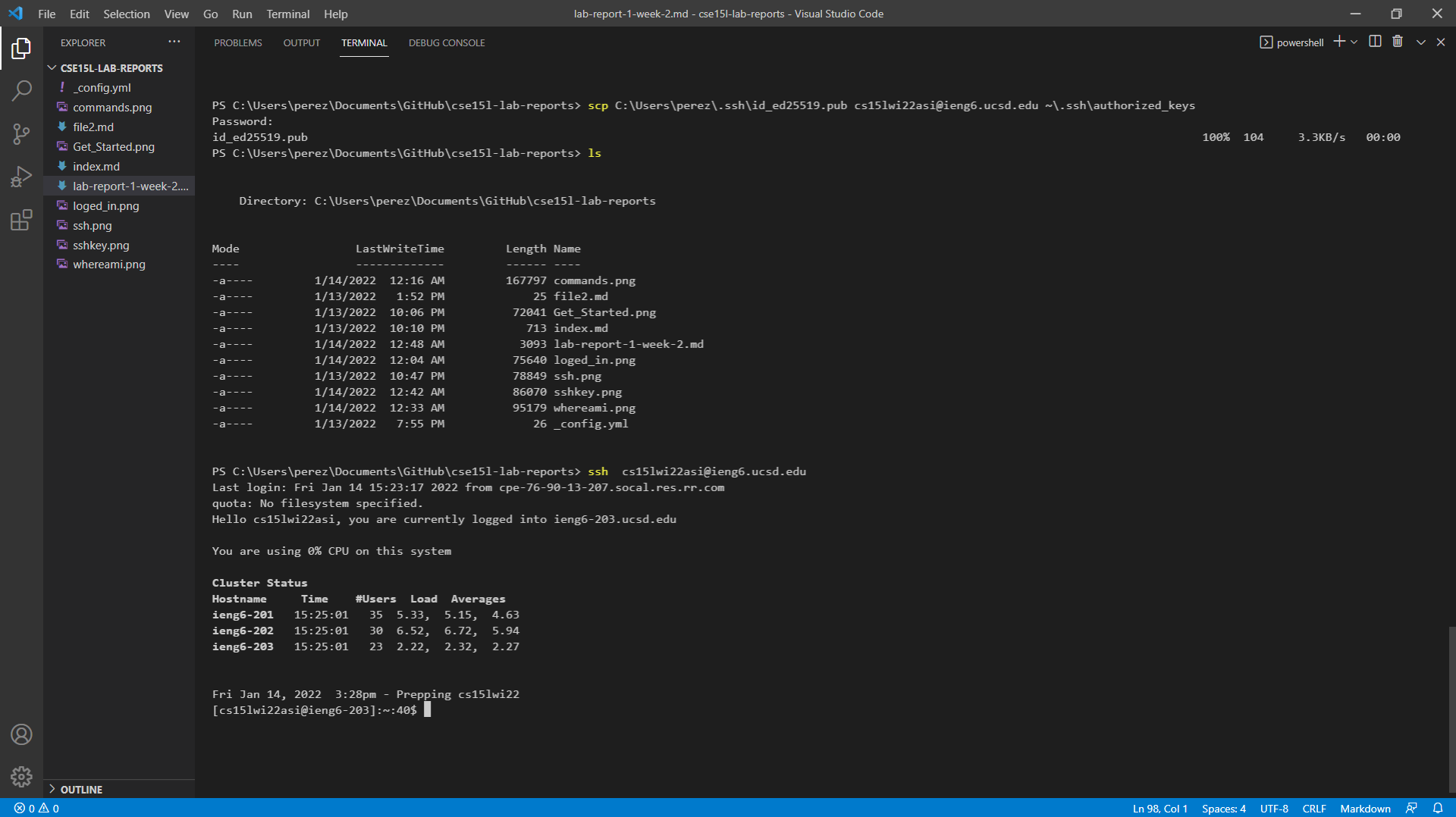
After this, I was able to log in withouth a pass word as seen in the following image:
Optimizing Remote Running:
For this part I edited WhereAmI.java and run it on the server in the most efficient way possible.
First I made the change to the file and pressed ctrl + s to save it. Then, I used the up arrow key to retrieved previous command. Also, I compiled and ran the program in the same line by separating them with a semicolon.